
Playing with your bot
Sometimes, for testing, you might want to join the game where your bot is as another player to interact with it directly and see how it reacts.
In this guide, we will learn how to do that and play with your bot in the same game.
WARNING
Before following the steps below, ensure your openfront/.env configuration file sets ENABLE_MANUAL_INPUTS to 1:
ENABLE_MANUAL_INPUTS=1Otherwise, you won't be able to play the game manually because your inputs (clicks, keyboard) will be ignored. See the reference for ENABLE_MANUAL_INPUTS.
Start the game server locally (see Run the game locally). Do not start your bot yet.
Open two different tabs side-by-side at
http://localhost:9000and wait for the main menu to load in both.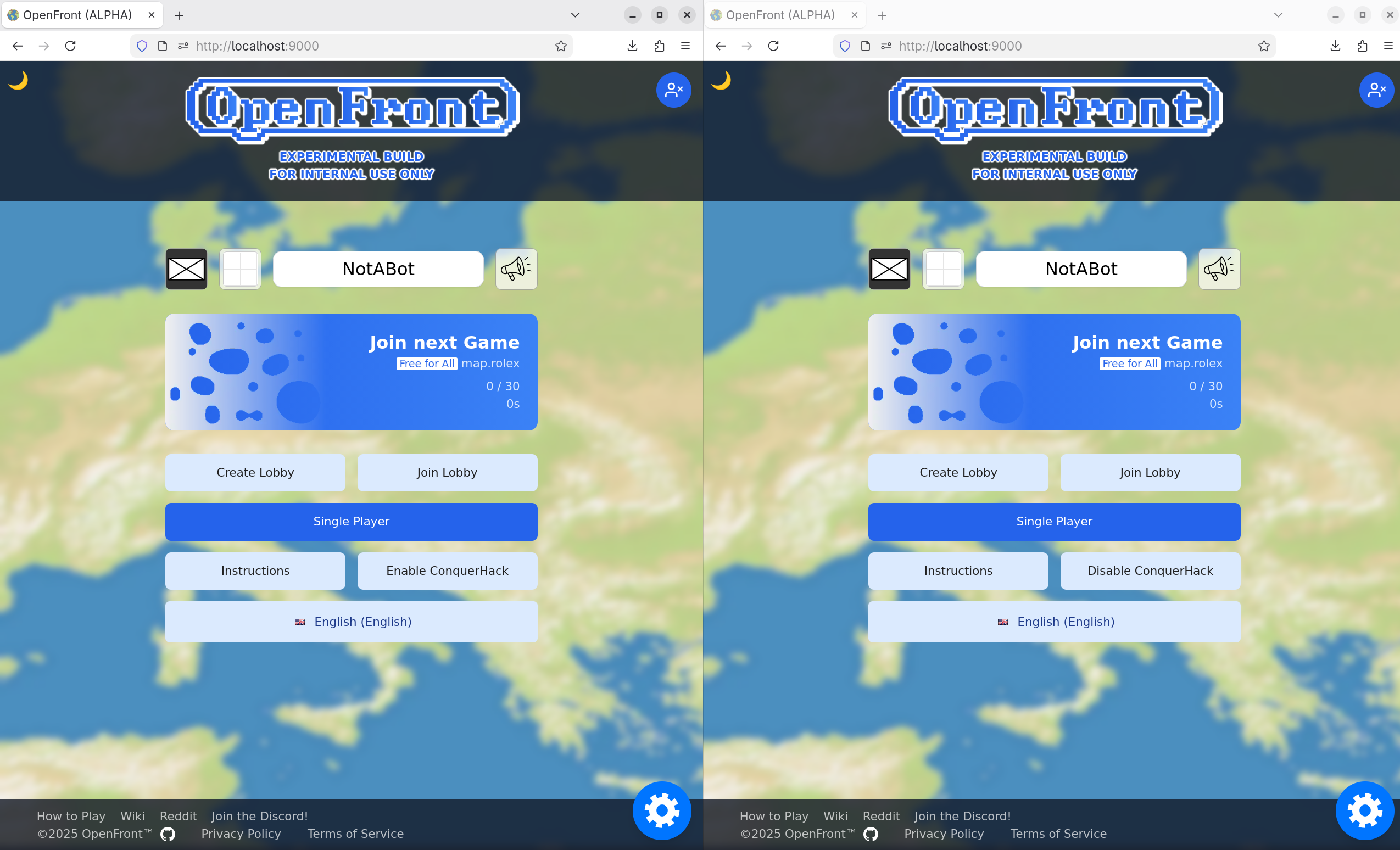
For the following steps, this guide assumes the left tab is where you play manually, and the right tab is where your bot will be. You can choose the opposite if you want.
In the left tab, click
Disable ConquerHack. This tells the browser tab "you are not controlled by a bot, you are controlled by me". The button label should change toEnable ConquerHackupon clicking.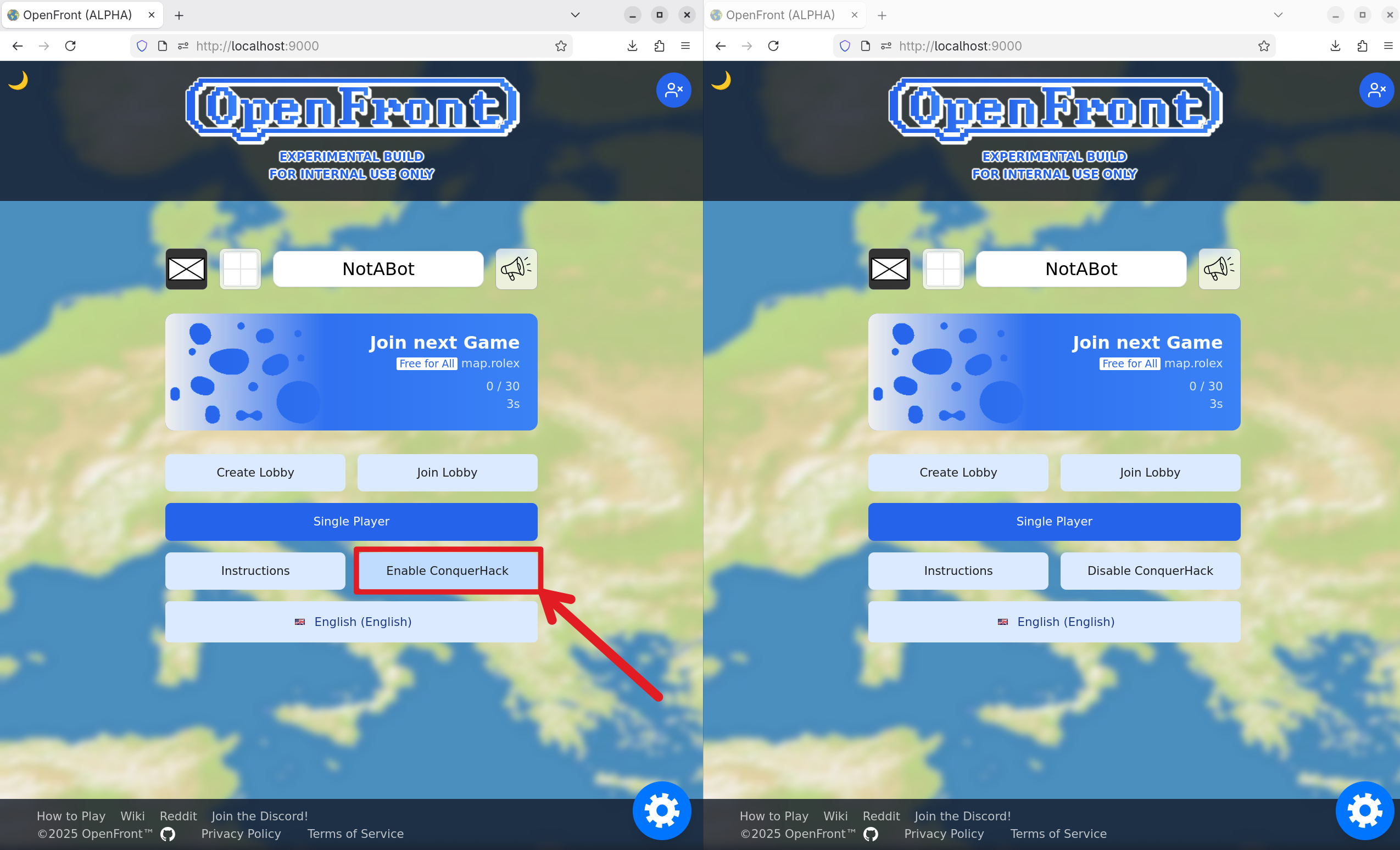
In the left tab, click
Create Lobbyand configure the game you want to play in.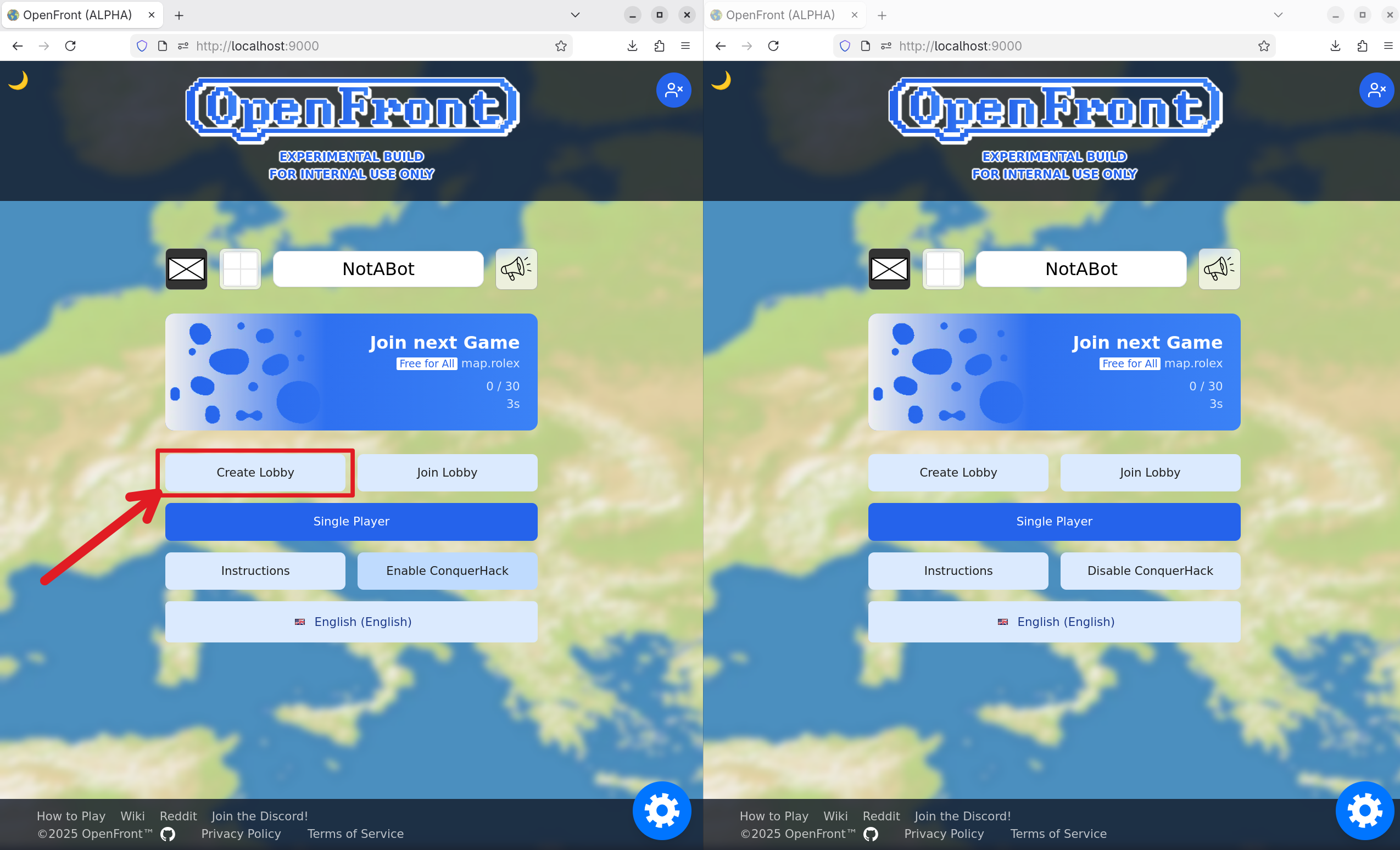
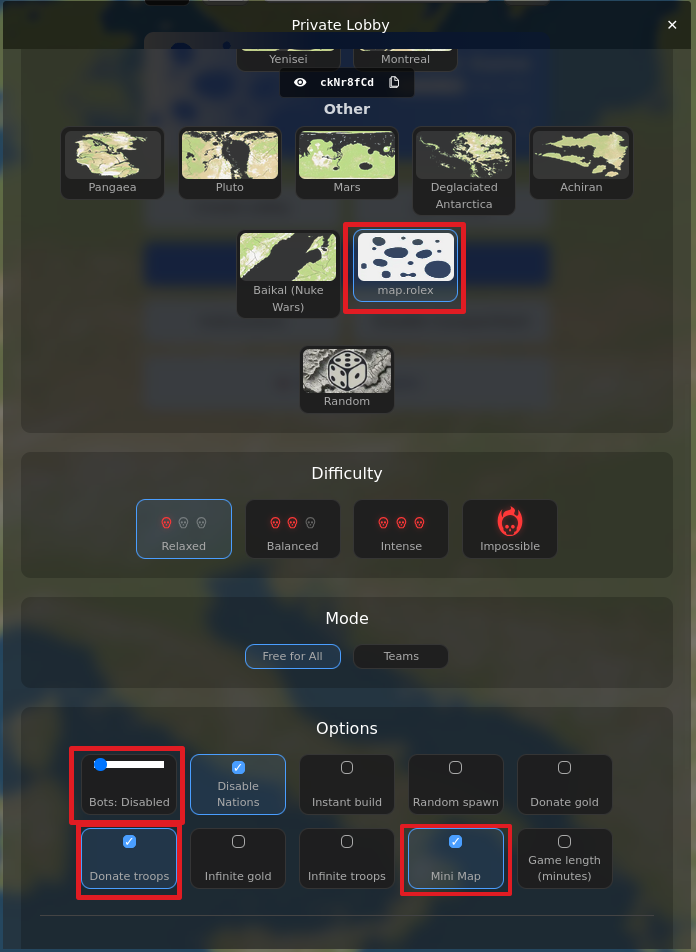
For testing, it can prove useful to make a very simple lobby with:
- A custom ConquerHack map (e.g.
Rolex) - Zero bots (
Bots: Disabled) - Donate troops enabled (so you can give troops to your bot for faster testing)
- Mini map enabled (so the game does not take up too much resource when running locally)
You may want to enable random spawn, but it can be more efficient to disable it and manually spawn both your player and your bot close to each other for faster interactions.
- A custom ConquerHack map (e.g.
Once the lobby is configured as you want, copy the invite URL.
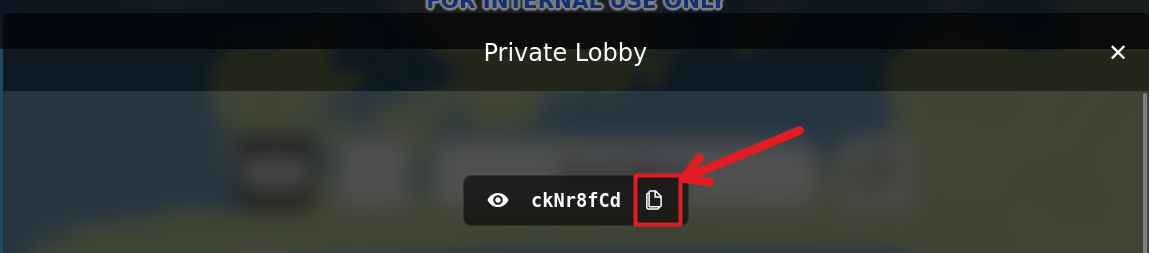
We will now start the bot. The steps will be the same as usual, with one difference: when you run the actual bot, set
LOBBY_IDto the URL you just copied:bash# For Python bots LOBBY_ID="http://localhost:9000/#join=ckNr8fCd" python3 main.py # For Java bots LOBBY_ID="http://localhost:9000/#join=ckNr8fCd" java -jar target/conquerhack-bot-1.0-SNAPSHOT.jarThis makes the bot join your private lobby instead of the default public lobby.
Wait for the bot to join the game.

Once it has joined, click the
Start Gamebutton.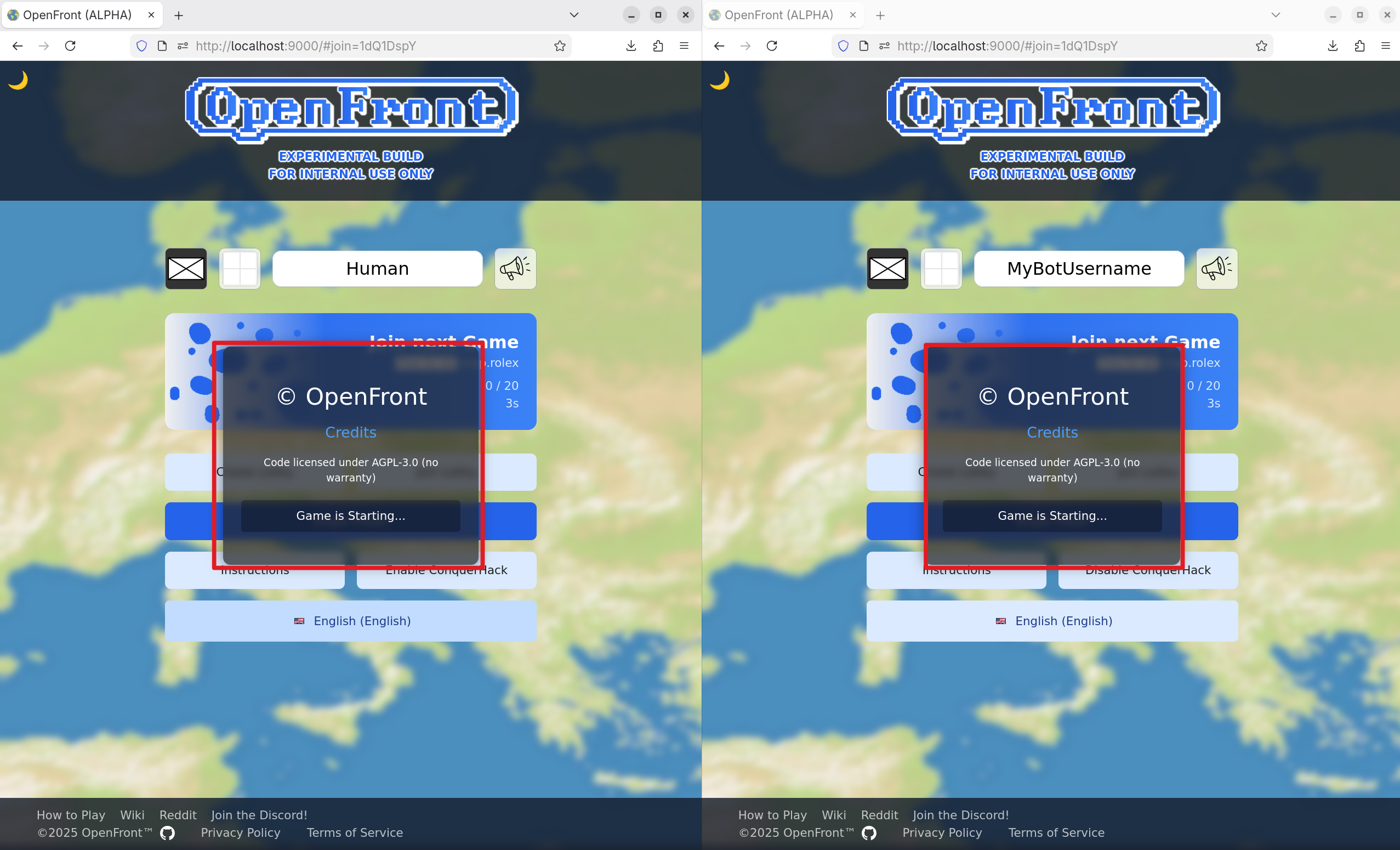
During the spawn phase, do not forget to spawn both your own player and your bot using each of the two tabs. You can spawn them close to each other for faster interactions.
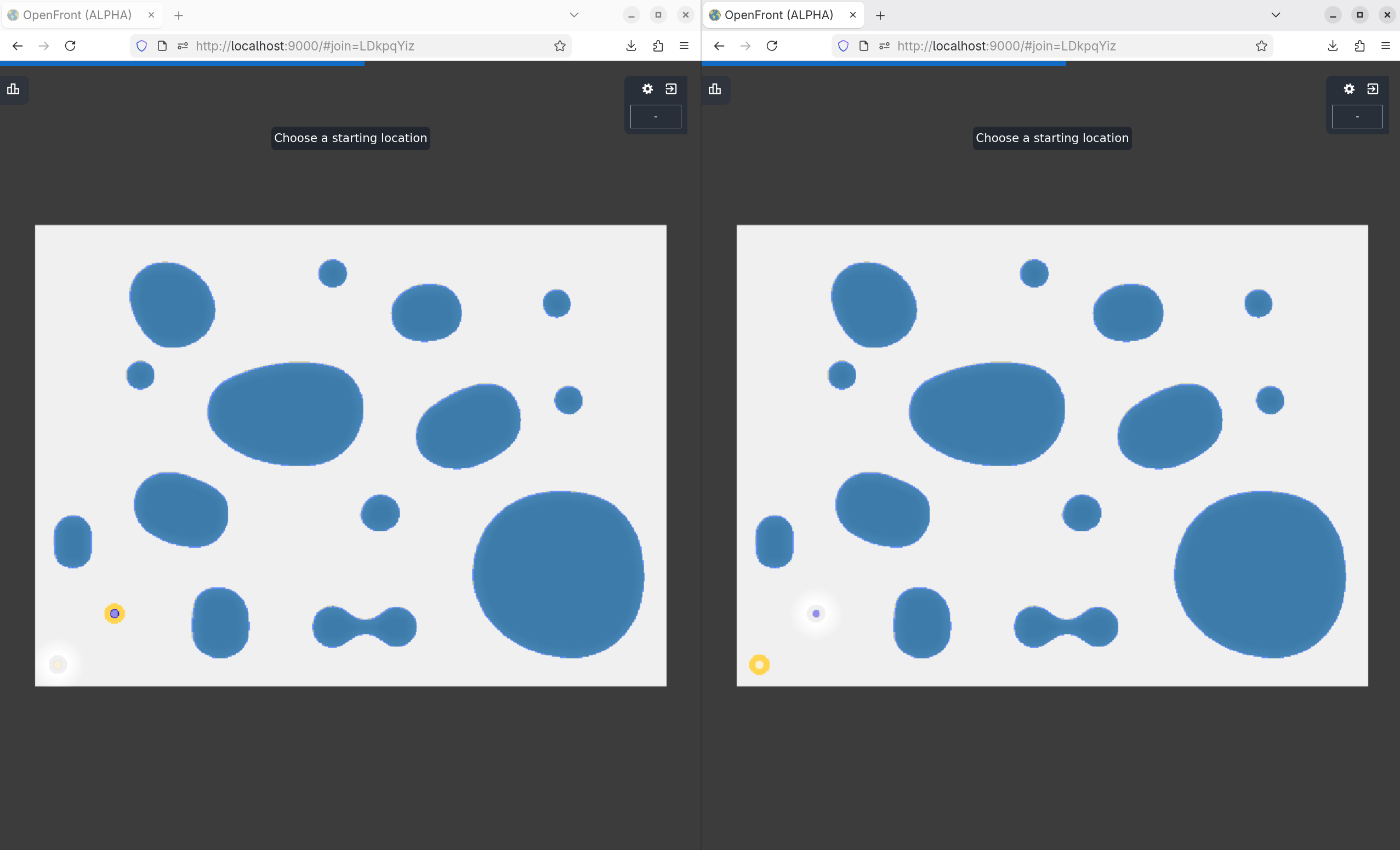
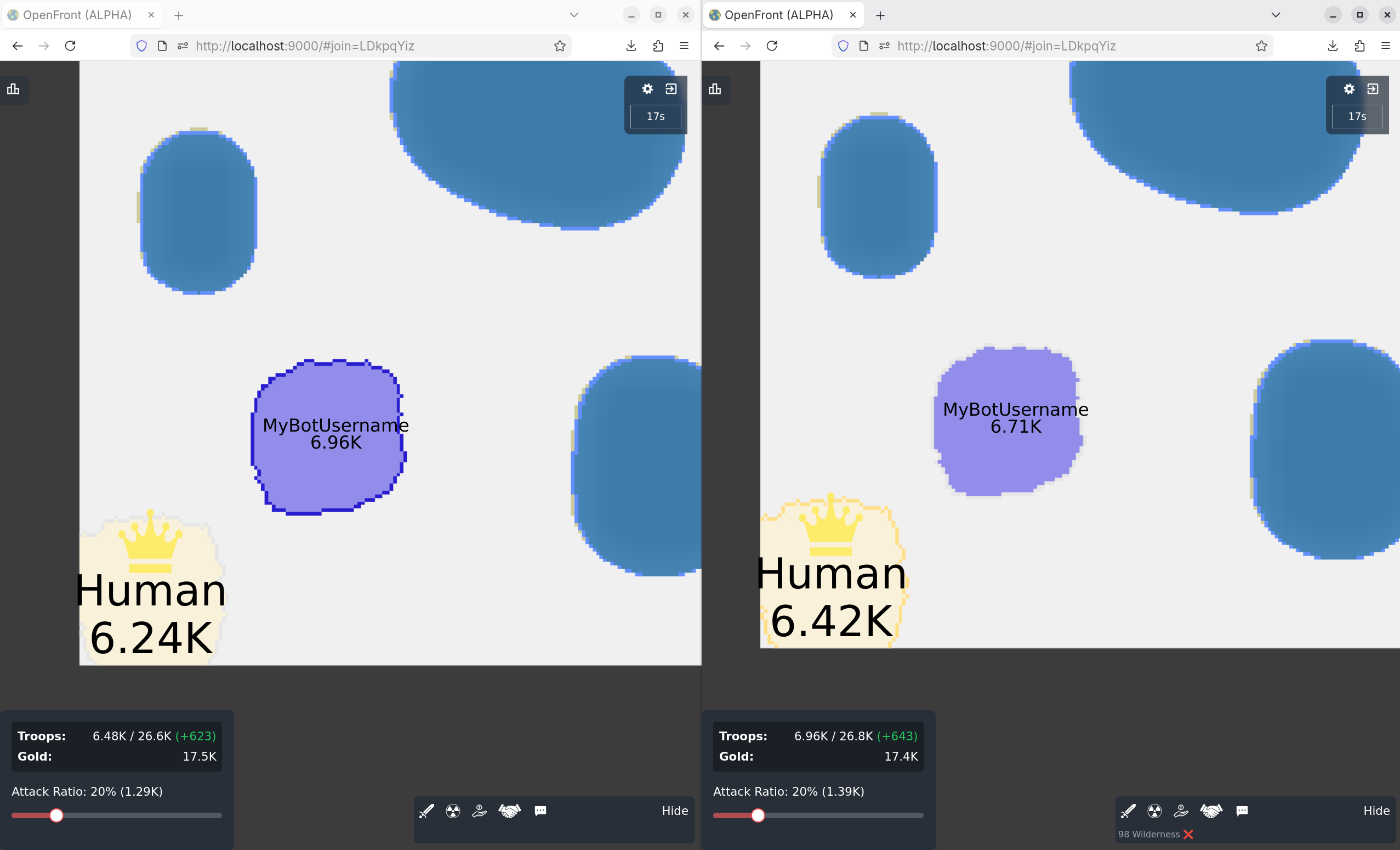
You can then play the game in the left tab while your bot is playing in the right tab. You can interact with it, send it messages, attack it, see how it reacts.
WARNING
Make sure both browser tabs are open side-by-side and displayed at all times.
If one of the browser tabs is not displayed or is put in the background by the OS/browser for some reason, it runs in efficiency mode and the game pauses. When you get back to that tab, it will run the game from when it stopped, sped up, to catch up the actual game.
To avoid this, keep both tabs open and displayed side-by-side while playing.